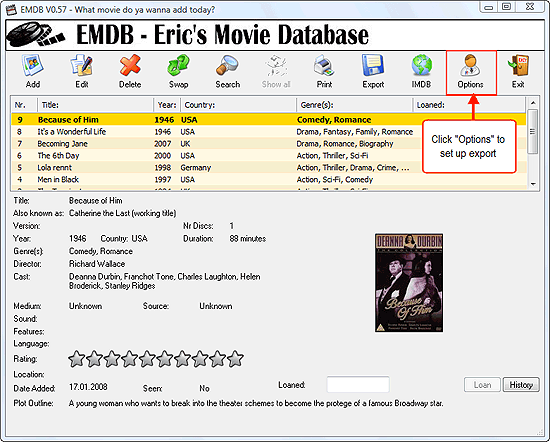
EMDB is a small utility to keep track of your DVD collection. With an automatic import from the database of IMDB, export to csv, text or complete website, thumbnail cover preview, a loan tracker, search function and multi-language user interface. EMDB is written in C++ using Microsoft Visual Studio 2005 and doesn't need a .NET framework or any other external libraries.
Changelog:
Import from HDD: New user interface with lots of options.
User Interface: Fixed sorting on numbers when more than 9999 movies in the database. Works fine now up to a million movies. That should be enough ;-)
Import from HDD: Fixed a crash when importing large number of movies in several sub folders.
Import from HDD: Movies with multiple results were you should select one from a list are queued until all automatic resolved movies are finished.
Import from HDD: Plot outline was not imported from Moviemeter.nl.
Import from HDD: Director was not imported if Director was already in the database.
Import from HDD: Better handle full DVD and Bluray file structures.
User Interface: Covers in movie details panel were sometimes cropped.
User Interface: Show TV Series cases option was not working.
User Interface: Fixed sorting on resolution.
Translations: Updated the Greek, Turkish and Swedish translations.
ApexDC++ is free P2P software for community sharing using the DC++ protocol. It is Open Source software published under GPL-2 allowing anybody to contribute. It has numerous features such as intelligent chunk spreading (super seeding), customization, themes, and a brand new user friendly GUI.
ApexDC++ is, and always will be, free from all forms of malware. The project is managed and developed by veterans of the P2P world.
The Direct Connect network is a decentralized network, made up of individual servers (hubs) that users join to share files with other members on that hub. Each hub is individually run by a fellow user of the Direct Connect network, and may have certain themes to the content on the hub. Hub owners set up rules to regulate their hub as they see fit. Direct Connect allows you to share files over the Internet without restrictions or limits. What's new in 1.5.1:
Fix: Possible fix for arranging toolbar for remote desktop users
Change: Files that no longer exist in downloads folder will be pruned from queue on startup
Change: Added encrypted ADC Fun hub to favourites (only if TGO hub is detected)
Change: Installer has option to launch ApexDC++ on startup
TeraCopy is a compact program designed to copy and move files at the maximum possible speed, providing the user a lot of features:
Copy files faster. TeraCopy uses dynamically adjusted buffers to reduce seek times. Asynchronous copy speeds up file transfer between two physical hard drives.
Pause and resume file transfers. Pause copy process at any time to free up system resources and continue with a single click.
Error recovery. In case of copy error, TeraCopy will try several times and in the worse case just skips the file, not terminating the entire transfer.
Interactive file list. TeraCopy shows failed file transfers and lets you fix the problem and recopy only problem files.
Shell integration. TeraCopy can completely replace Explorer copy and move functions, allowing you work with files as usual.
Full Unicode support.
Changelog:
Added: ‘Remove other’ to remove non-selected files from the list [Pro].
Added: Better handling multiple copy processes.
Added: Multiple retries to delete source files and folders after moving.
Added: Tray notification when adding files to the existing process.
Fixed: Problem with some non-Latin filenames.
Fixed: Copied files now have a correct creation time.
You may remember the rumors that were going around earlier this year about Microsoft's upcoming social network, which was going by Tulalip at the time. It turns out that Microsoft has been testing the service with select users since then, and The Verge's Thomas Houston got a sneak peak at the service, which they're now calling Socl.
The site features a sparse Metro design with bare bones navigation controls, and a heavy emphasis on search. You'll find a prominent search bar at the top of the page, which works kind of like a status update. The search bar lets you share what you're searching for, like 'live Dylan covers,' or what you're doing, such as saying you're 'at a live Dylan concert.' This will drop the appropriate Bing results into your feed, so your friends can see, share and comment on it. The items can be tagged by type, and it's a completely voluntary process, so you only share what you want (rest easy, you don't have to share your, ah, 'private' searches).
It's been reported that the tagging system is a bit too specific, since most people aren't going to be searching for generic terms like 'film' or 'technology,' but considering that its in such an early stage of development, it's a problem that will hopefully disappear.
One really novel feature that Socl brings to the table is video party, which lets you chat live with your friends via webcam and watch YouTube clips together. Like the rest of the site, it's built completely out of HTML5, so it's fast and easy to use. It's possible that this could be built using the Skype infrastructure that Microsoft recently acquired, but since the whole project has been fairly quiet, there's no word on that.
Socl is coming out of Microsoft's FUSE research group, so it may or may not actually end up getting a public release. The Verge says that Microsoft is planning on rolling out a larger public test via an invite system in the near future.
Ultimately, Socl looks like another part of Microsoft's campaign to make search 'less lonely,' as they put it in a recent press release. The business plan is all about driving more traffic to Bing, and it's easy to imagine Socl functioning not only as a stand alone product, but as a way for you to share your search results through other services, like Facebook and Twitter.
Protecting your computer with an antivirus solution is par for the course when you’re dealing with a Windows PC, but unfortunately it slows you down at the same time. Here’s how to improve your performance, at least a little bit.
We’re not going to sit here and tell you to go without antivirus, since that would be irresponsible. What we’re going to do today is explain how you can exclude certain folders with write-heavy operations to speed up your PC without putting yourself into extra danger.
Note: Before you start excluding any files, you keep in mind that changing any of the default security settings could be risky, and you should probably close the browser tab and run away. Or maybe print off the article and burn it. Also, the image is by xkcd
What Files Should You Exclude?
The general idea is that if you have some applications that are writing to the hard drive constantly, you should probably exclude the folders they are writing or reading from, as long as those applications are trusted and safe.
For example, if you’re using a virtual machine, which does both reads and writes from the hard drive on a fairly constant basis, you should make sure your antivirus application is not scanning those files and folders. Here’s a few examples of some things you may consider excluding:
Virtual Machine Directories: If you’re using VMware or VirtualBox, you should make sure those locations are excluded. This is actually what prompted this article, and probably the only significant performance boost out of the things we’re mentioning.
Subversion / TortoiseSVN Folders: Have you ever tried to do a big checkout of a source control project and had it fail? There’s a good chance that it’s conflicting with your antivirus application. This one has personally happened to me.
Personal Photo/Video Folders: Got you have a massive library of photos or videos that you’ve taken with your digital camera? As long as you only use this location for files copied from your SD card, there’s no reason to be scanning it and slowing your PC down while doing photo editing.
Legitimate Music Folders: If you’re downloading music from shady sources, this does not apply. If you’ve ripped your own CDs or downloaded from somewhere legitimate like Amazon, then you can safely exclude your music folder.
Windows Update Folders: This actually comes straight out of a Microsoft KB article—you’ll notice that they don’t recommend it, because they can’t do that in case somebody writes a special virus for the purpose of suing them, but the same principle applies.
Other Scenarios
There’s a nearly infinite number of applications and scenarios for everybody’s PC, so it’s hard to say exactly what is going to work on your PC—but there’s a way you can figure it out for yourself using Process Monitor, the great tool from Sysinternals at Microsoft.
Just open up Process Monitor, and then “uncheck” all of the little icons on the right-hand side of the toolbar, leaving only the “Show File System Activity” one checked. At this point you’ll see loads and loads of items in the list, with every access to the file system.
You can use this data to figure out which applications are constantly reading and writing to the hard drive, and then based on the safety of those files, you can choose whether or not to exclude them. Don’t Exclude File Types, Exclude Folders
When you exclude a filename or file extension, you are telling your antivirus software to completely ignore those files anywhere on your system, which could cause a security problem. It’s a much better bet to exclude a particular folder that you know is safe, like your virtual machine folders. Always Scan Files from the Internet
I’ll start by saying this should go without saying… which always seems to be said anyway… but you should make absolutely certain to scan any files that come from anywhere on the internet, and especially when those files come from torrents or other similar sources rife with viruses. All Antivirus Applications Work Differently
The next thing to mention is that not every antivirus application is going to work the same way—for instance, by default, AVG only scans a specific set of file extensions, and files with no extensions. There’s no way to tell—without benchmarking, at least—whether excluding folders will make a performance difference if they don’t scan those extensions.
Some other anti-virus applications, however, don’t limit themselves to specific file types, so you’ll need to dig into the settings for your particular application.
Excluding Files from Microsoft Security Essentials
Microsoft Security Essentials makes it real simple to exclude files—just head into the Settings, choose Excluded files & locations on the left-hand side, and then add folders into the list on the right-hand side.
You’ll probably notice that MSE doesn’t slow your system down very much anyway.
Excluding Files from AVG Anti-Virus
As we mentioned earlier, AVG works a little differently—if you head into Tools –> Advanced settings…
Then head to Resident Shield –> Advanced Settings to see the list of file types that are currently being scanned. You’ll notice that AVG always scans files with no extensions, which shouldn’t normally pose a problem, but depending on the applications you’re using there might be a problem.
You can switch to the Resident Shield –> Excluded Items to add in folders or specific files to exclude from scanning.
We’re not going to cover every other antivirus application, but they all pretty much work the same. Also, we prefer Microsoft Security Essentials.
Funny Related Story
About 10 years ago, when I was still fairly new at the vaporware company I was working for at the time, the ILOVEYOU worm attacked our email system, crushing our Microsoft Exchange server with an overload of emails, and then the worst possible thing happened—our email server became corrupted. The IT staff ran the recovery tools, which fixed the problem and all was well… for a few hours until it became corrupted again. And again.
After a couple days of this problem, I finally popped my head in the door and asked to take a look. Sure enough, the problem became very clear within minutes.
That’s right. You guessed it…
They had installed the desktop edition of Norton Antivirus on the email server, and they didn’t exclude the database folder for Exchange. Virus-laden emails came into the Exchange database, and then Norton proceeded to rip them right out of the database itself, corrupting the files badly in the process.
Of course, I removed Norton and proceeded to grab a reputable antivirus plugin for Microsoft Exchange, which cleaned the emails the proper way, and all was well. Until the brilliant IT person installed Norton again. *sigh* At least I got a promotion out of it.
Wrapping Up: Use This Tip At Your Own Risk
Just to wrap up, and as we said earlier, forget that you read this article, and if you get a virus don’t blame us. This especially applies if you’re not really sure what you’re doing—this probably isn’t something you should mess with.
Mozilla Firefox is a fast, full-featured Web browser. Firefox includes pop-up blocking, tab-browsing, integrated Google search, simplified privacy controls, a streamlined browser window that shows you more of the page than any other browser and a number of additional features that work with you to help you get the most out of your time online.
The Web is all about innovation, and Firefox sets the pace with dozens of new features to deliver a faster, more secure and customizable Web browsing experience for all.
User Experience. The enhancements to Firefox provide the best possible browsing experience on the Web. The new Firefox smart location bar, affectionately known as the "Awesome Bar," learns as people use it, adapting to user preferences and offering better fitting matches over time.
Performance. Firefox is built on top of the powerful new Gecko platform, resulting in a safer, easier to use and more personal product.
Security. Firefox raises the bar for security. The new malware and phishing protection helps protect from viruses, worms, trojans and spyware to keep people safe on the Web.
Customization. Everyone uses the Web differently, and Firefox lets users customize their browser with more than 5,000 add-ons.
Have you ever been doing something, like playing a game, and had that obnoxious Sticky Keys dialog pop up? You answer No and it goes away… and then shows up again the next day. Here’s how to make it go away for good.
In case you aren’t sure what we mean… hit the Shift key five times fast.
Yeah, annoying. It’s a helpful accessibility feature for some people, but it’s really irritating for the rest of us. Disable Sticky or Filter Keys
If you didn’t click on the “Go to the Ease of Access Center” link, you can simply navigate in Control Panel to the Ease of Access center, and find the link for “Make the keyboard easier to use”.
Once you are there, you’ll want to make sure the boxes for “Turn on Sticky Keys” or “Turn on Filter Keys” are turned off—which simply means the feature isn’t active at the moment, but doesn’t mean the annoying popup will go away.
For that, you’ll have to click on either “Set up Filter Keys” or “Set up Sticky Keys” (or both). Disable Filter Keys Popup
If you went to the Filter Keys setup screen, remove the checkbox from “Turn on Filter Keys when right SHIFT is pressed for 8 seconds”.
This will completely disable the irritating popup. Disable Sticky Keys Popup
If you chose the setup for Sticky Keys, uncheck the box for “Turn on Sticky Keys when SHIFT is pressed five times”.
And that should disable the annoying popup dialogs for either Windows 7 or Vista. Windows XP users will find similar shortcuts under Accessibility in Control Panel.